 AutoStream
A short video of each good play, named for what is in it, like 4 kills or Last alive 1v4. Tall versions for Shorts too, if you want them.
You need: AutoStream, and a video of you playing. It can be a recording AutoStream made, or one you already have from anywhere else.
-
Pick the recording
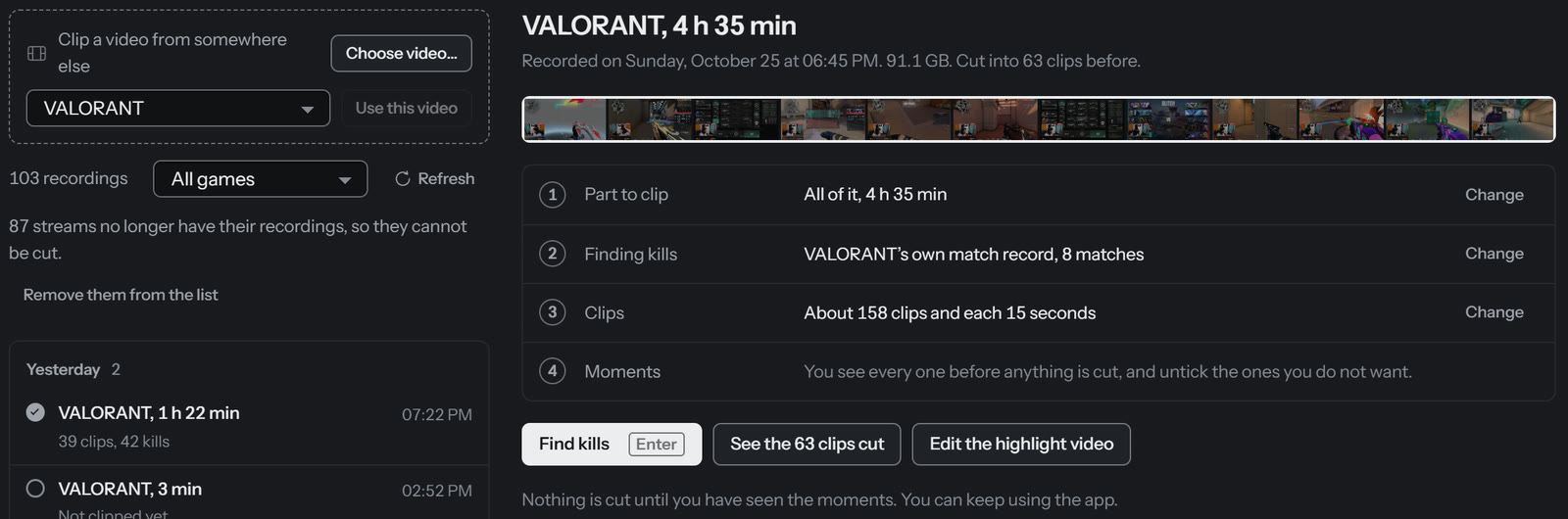
Open Clips. Recordings AutoStream made are already in the list: click one. For any other video, press Choose video, pick the game it shows, then Use this video.
-
Press Find kills
AutoStream watches the recording for you. You can keep using your PC while it works. The settings it shows are good to start with; you can change them later.
Only want part of a long video, like the one match you care about? Press Change next to Part to clip and drag the two handles.
-
Look at what it found
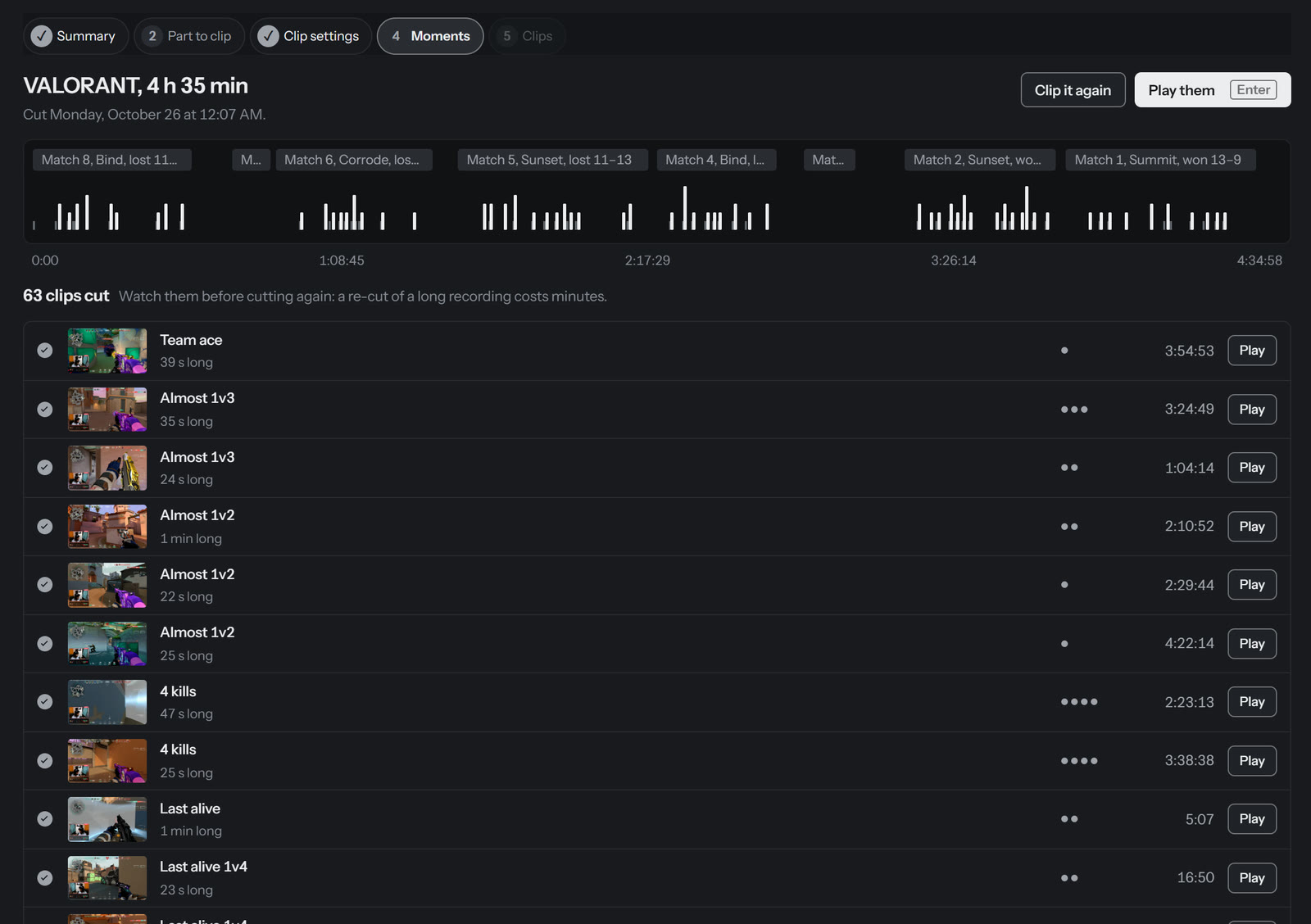
Every moment is on a timeline of the whole recording, and in a list with a name and a Play button. Nothing is cut yet. Untick anything you don't want.
-
Press Cut these clips
Your clips are saved in Videos, under
AutoStream\clips, in a folder for that recording. From the same screen you can Make a reel from them, or, for Valorant, make the stream highlight.
If something is off
- The button is greyed out
- The reason is written right under it. Usually the video tool is missing, with an Install button beside it.
- It found no kills, or too few
- Check you picked the right game for the video. For a game AutoStream does not know, see how it finds moments below.
- Valorant kills are missing or doubled
- Keep AutoStream open whenever you play Valorant, even in the menus. It then saves each match's details from the game, which is far more exact than watching the screen. Played with it closed? Fetch match records now on the Clips page goes back over your recent matches.
How does AutoStream find my moments?And why some games give more accurate kills
Not every game draws a kill marker, so there is no single trick. Two things can tell AutoStream where your kills are, and they are not close in quality. Reading the screen always works and is approximate. The game's own record of the match is exact, and knows things no screen shows: who was still alive, whether a shot went through smoke. That is what turns "3 kills" into "1v3 clutch".
| Game | What it reads | What you do |
|---|---|---|
| Valorant | Riot's match record from the game client on your PC: exact kill times and who was alive at each. Without it, the yellow border the game draws round your own row in the kill feed, at about 14 times real time. | Keep AutoStream running while you play. |
| Counter-Strike 2 | Your .dem replay: rounds, clutches, kills through smoke,
wallbangs, no-scopes. Without one, the kill-card tally under the crosshair, at about 10 times real time. |
In the game: Watch, your match, Download. AutoStream finds it and works out which player is you. |
| Delta Force | The skull drawn under the crosshair. | Nothing. |
| Marvel Rivals | The HUD: ult meter, health bar and objective line. You get a summary of each match with the dead time cut, and a highlight of its fights. | Nothing. |
| Any other game | A kill marker you show it once (Calibrate a game: scrub to a frame just after a kill and box the marker), or the loud moments in the audio. Loud moments are never called kills, because they might not be. | About a minute, or nothing. |
Reactions
Your reactions are read off your microphone, measured against how loudly you normally talk. That needs your mic on its own audio track, which AutoStream's own recordings have.
Do not rename recordings
A name like 2026-09-05 00-46-48.mp4, the way most recording apps name files, is the exact time it was recorded, and that is how
a recording is matched to its demo or match record.
Clip settings
| Style | Before the kill | After | Length |
|---|---|---|---|
| Short-form | 1.5 s | 2 s | 15 s |
| Montage cut | 1 s | 1.5 s | 6 s |
| Full context | 6 s | 4 s | 30 s |
Then the minimum kills per clip, whether you want 1080x1920 verticals, and whether to build a montage. Counter-Strike gets at least 3 seconds before and 4 after, because a kill there ends a slow approach. In the review you can also write a caption for the vertical, set its framing, and add zoom, freeze and sound effects. Running it again with other settings reuses the first reading, so it is nearly instant.