 AutoStream
One video of your best matches from the evening, cut like the single-stream highlights YouTubers post: long real stretches, the quiet bits taken out, your face when you react, and captions of what you said.
You need: a Valorant recording, and AutoStream open while you played it, so it saved each match's details from the game. A recording AutoStream made itself is best: your mic is on its own track, so it can hear your reactions.
-
Play with AutoStream open
Keep it running whenever you play Valorant, even in the menus. The dashboard shows each match as it is saved.
-
Make clips from the recording
Exactly as in Make clips from a recording. The highlight is built from what that reading found.
-
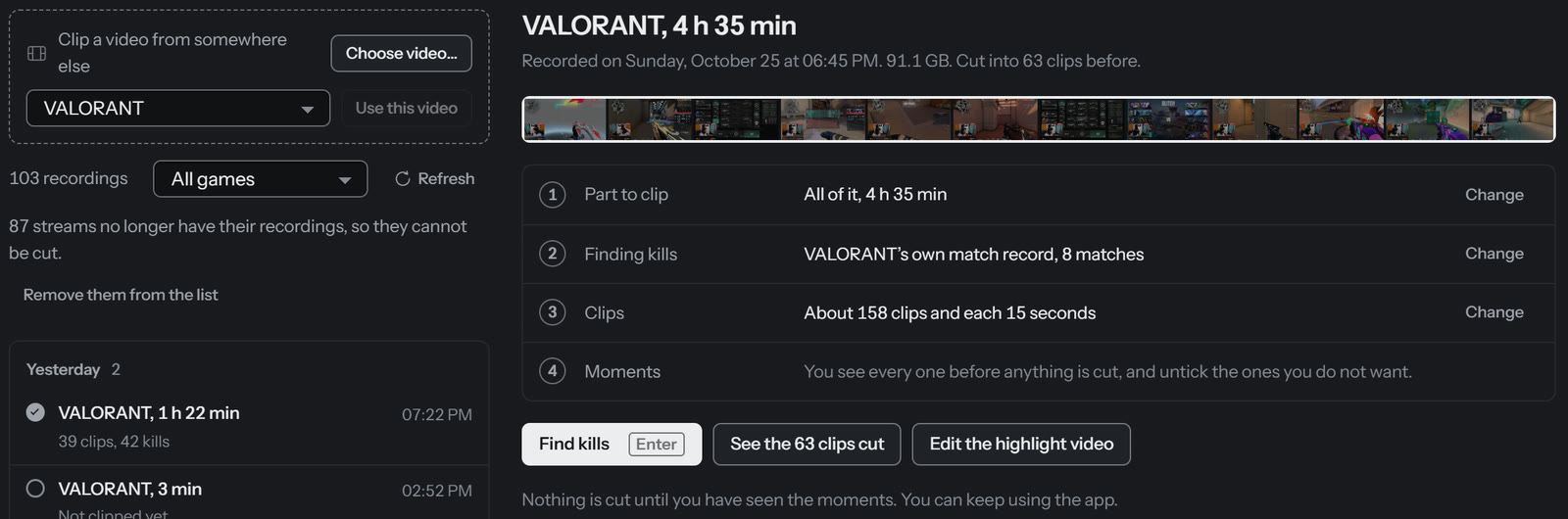
Press Make the highlight video
It appears with your finished clips. Nothing is read or cut again. If the highlight was already made with the clips, the button says Edit the highlight video instead.
-
Watch it, then make it yours
The video is saved next to your clips. Open it in the highlight editor to take out a moment, zoom on your face, fix a caption or change the volume.
Captions
Captions write down what you and your team said, in English, or in Hinglish the way you would type it (clove neeche hai). Turn them on in the editor.
Writing down speech needs an NVIDIA graphics card and a one-time download of a few gigabytes. AutoStream tells you the size and asks before it downloads anything. Without one, the highlight still works, just without captions.
If something is off
- There is no highlight button
- AutoStream did not get the match details for that recording, so it cannot tell where rounds start and end. Keep it open while you play next time, or try Fetch match records now on the Clips page, which reaches back over your recent matches.
- It never zooms on my face
- Show it where your camera is: in the editor, Move the facecam box and drag the box over it.
Technical detailsHow it picks the stretches
Your kills, your deaths and your reactions on the mic become events on the recording's clock. Events within 12 seconds of each other are one stretch. A stretch starts where the situation started (the first contact of its fight, or the moment you were left last alive) and ends when the round is decided and you have finished reacting, never running into the next round's fight. Inside a stretch only dead time is cut: six seconds with both the mic and the game quiet and nothing brewing.
It covers the three strongest matches of the session at four to six minutes each, with at most one deathmatch. The last kill of a run of three or more gets a small punch-in, and the video ends on the game's result screen and your channel's end screen. Rounds come from Riot's match record, which is why Valorant is needed.
Hinglish captions are written from what the speech-to-text heard in Devanagari, letter by letter, so they never invent a word; English and game words said in Hindi come back in English spelling.