 AutoStream
You need: a highlight video AutoStream made (see the last tutorial).
-
Open it
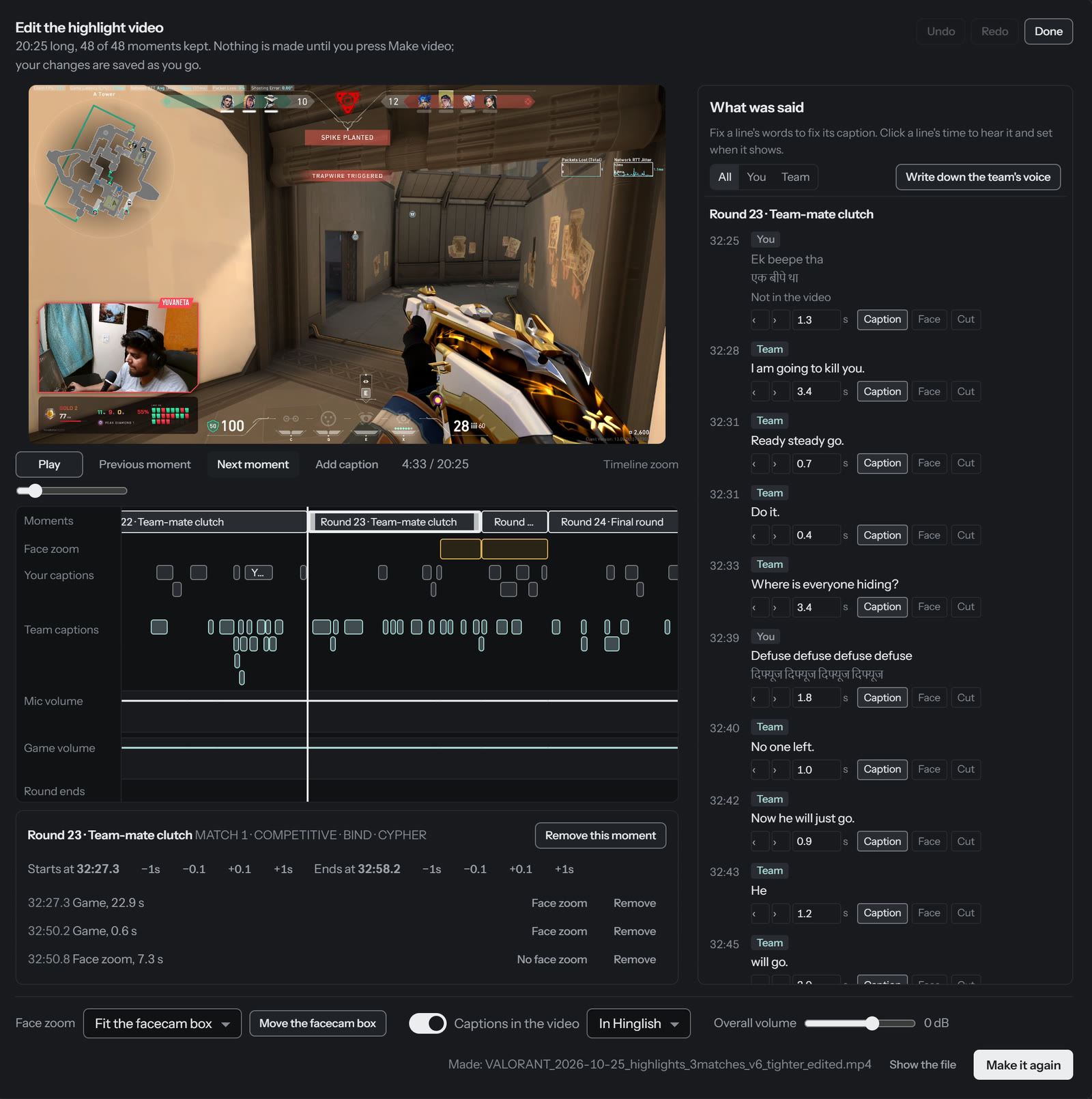
On the Clips page, click the recording, then Edit the highlight video. Press Play, or jump with Previous moment and Next moment.
-
Remove or trim a moment
Each kept stretch is a block on the Moments row. Drag its edges to trim it, or select it and press Remove this moment. A removed moment stays on the row, greyed out, so you can bring it back.
-
Zoom on your face
First check the box sits on your camera: Move the facecam box. Then draw a zoom on the Face zoom row for exactly as long as you want it, and drag it to move or resize it.
-
Fix a caption
Everything said is listed on the right, next to the moment it belongs to. Change the words there to fix the caption, or click its time to hear it. On the captions row, drag a caption to move it or its edge to retime it. Choose English or Hinglish with Captions in the video.
-
Set the volume
Your mic and the game each have a line. Click it to add a point, drag a point to make it louder or quieter, double-click to take it away.
-
Press Make video
It makes a new video next to the original, which stays as it was. Your changes are saved as you go, and Undo works throughout. Change something later and the button becomes Make it again.
Technical detailsFiles, loudness, team voice
What it writes
<your video>_edited.mp4 and a matching .srt subtitle file, beside the original.
The project is kept in <your video>.edit.json.
Overall volume
The Overall volume slider moves the loudness the finished video is aimed at; 0 dB is the usual -16 LUFS for YouTube.
Your team's voice
Write down the team's voice transcribes the game track, where your team's voice comms are, into a
second row of captions above yours, marked [Team] in the subtitle file. Like your own captions it
needs an NVIDIA graphics card; where it cannot run, the button says so rather than failing halfway.
When it renders
Make video waits while you are live, recording or cutting clips, so it never costs you frames in a game.